
1 · First-hour setup
Sign in with a manager account and begin at /staff/admin/setup. Launch setup reports how many of the five required readiness checks are complete and keeps optional polish separate from anything that blocks service.
- Set the property name, welcome message and timezone. The timezone controls service windows and local reporting.
- In Branding, upload the logo and choose the primary and accent colors. Check the guest preview with the real mark before QR cards are printed.
- Choose the currency, service charge and available payment methods: room charge, card on delivery and cash on delivery.
- Choose the guest access rule. Room + surname checks each order against a current stay; open ordering is available for day guests, events or other unverified service.
- Build the menu, create the ordering spots and make sure there is at least one active Bar user and one active Floor team user.
- If guest verification is enabled, add or import the current guest stays before testing the guest flow.
- Optionally add the property's legal details, daily summary email, floor map and integration settings. These improve operations but do not replace the five required checks.
- Place a test order and carry it all the way through Delivered and settlement before the live launch.
Operator note · Launch setup is the source of truth for readiness. If a required card is incomplete, use its action link instead of hunting through the admin.
2 · Build the menu
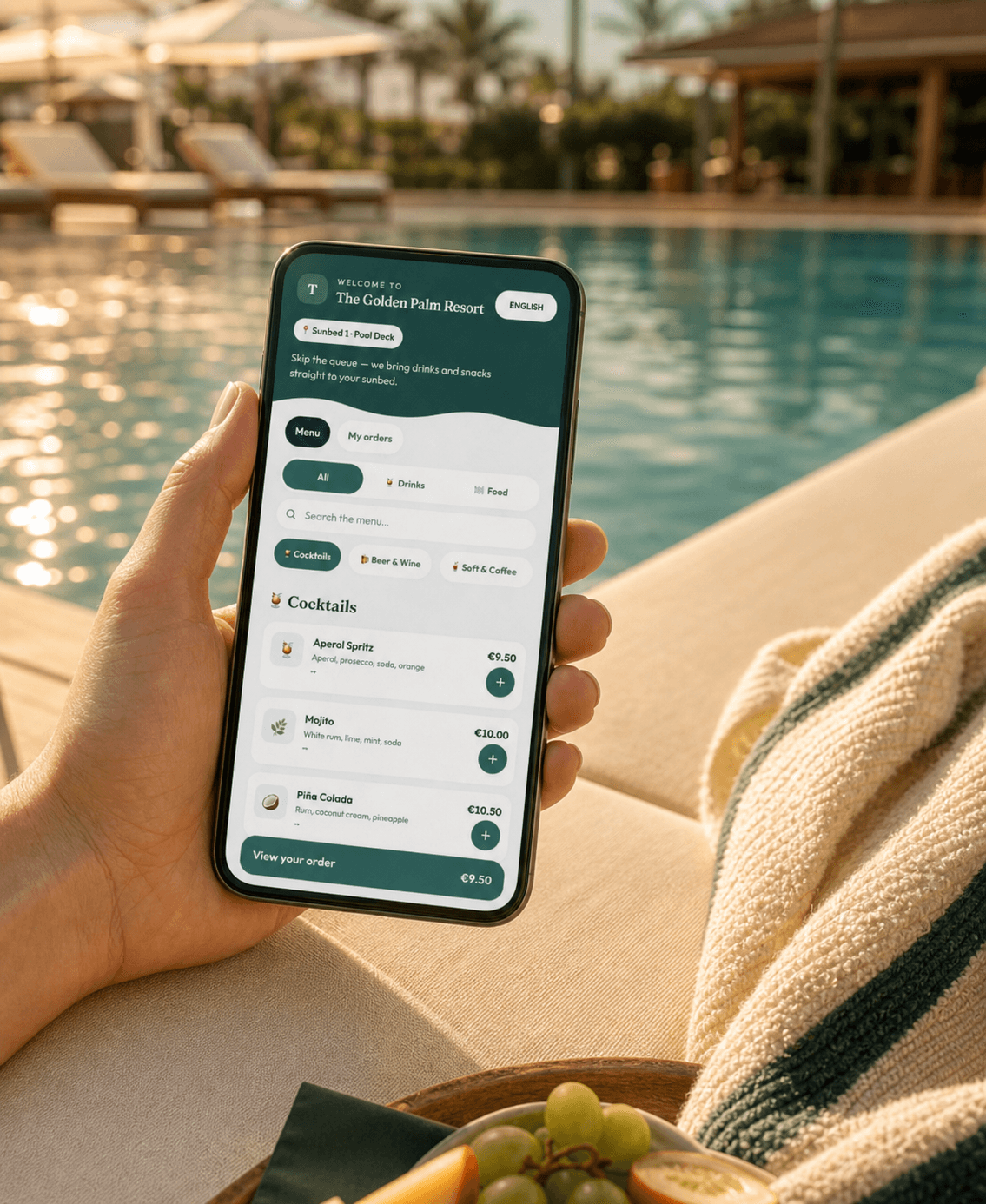
Open Menu at /staff/admin/menu. Guests see the same category and item order that the property maintains here.
- Create categories such as Cocktails, Refreshments and Small Plates. Set each category to Drinks or Food; that choice routes its items to bar or kitchen and applies the matching service hours.
- Add each item's name, description, price, tile emoji and optional photo. Phone photos are suitable and are resized when uploaded.
- Use in stock for day-to-day availability. Use active when an item should disappear from the guest menu entirely, such as a seasonal listing.
- Add house preparation notes where the bar needs more than the linked cocktail guide. Specs, method, garnish and glassware stay close to the production line.
Operator note · Check every category's Drinks or Food type explicitly. A clear category name helps the initial suggestion, but the saved type controls routing and hours.
3 · Spots, QR cards & floor map
- In Tables & QR at
/staff/admin/tables, create every orderable sunbed, daybed, cabana or table and group it into a useful zone. - Print the branded QR cards, then fix the matching card to each physical spot. Test a scan from a guest phone before laminating the full batch.
- In Floor map, upload a deck plan or photograph and place the spots on it. The map gives the service team a shared view of where open orders belong.
Operator note · A QR belongs to a spot, not a guest. Deactivating the spot stops that code from taking orders; a single card can be reprinted from the same admin screen.
4 · The guest list
When room + surname verification is enabled, Guests at/staff/admin/guests controls who can order through a scanned code.
- Add a stay individually with room, surname and dates, or import arrivals from a CSV containing the same fields.
- Verification succeeds only during the recorded stay. Leave checkout blank only when the stay is intentionally open-ended.
- End a stay during an express checkout and remove departed guests when the team is ready to tidy the list.
- Block a guest when ordering must stop. The guest receives a discreet request to speak with the team, and an authorised staff member can remove the block later.
Operator note · Guest matching ignores case, accents and spacing. Check the stay dates and blocked state before changing the spelling of a name that already looks correct.
5 · Service hours & happy hour
Open Branding and review the two time-based controls:
- Service hours can be different for Drinks and Food. Outside an open window, that part of the menu explains when it returns and the server refuses stray orders. Overnight windows, such as 10:00 to 02:00, are supported; an unused row can remain off for all-day service.
- Happy hour has a start, end, discount, scope and banner name. During the window, guests see the offer and the reduced price. The price is calculated when the order is placed, so receipts, bills and reporting retain the amount actually charged.
Operator note · Confirm the property timezone before testing either control. A correct clock with the wrong timezone still creates the wrong guest experience.
6 · Staff accounts & roles
In Staff at /staff/admin/accounts, give each person an individual login. That keeps staff-taken orders and delivery actions attributable to the person who handled them.
- Manager — property administration and the full operating view.
- Bar — preparation boards, stock, payment and delivery handoff controls without access to the manager admin.
- Floor team — the mobile order pad and assigned delivery work, including ID and payment handoff steps where required.
- Owner group access, when configured, sits above individual property roles and can switch between authorised properties.
Operator note · Avoid shared logins. Clear attribution is useful during a busy shift and essential when a settlement or guest-service exception is reviewed later.
7 · Running service
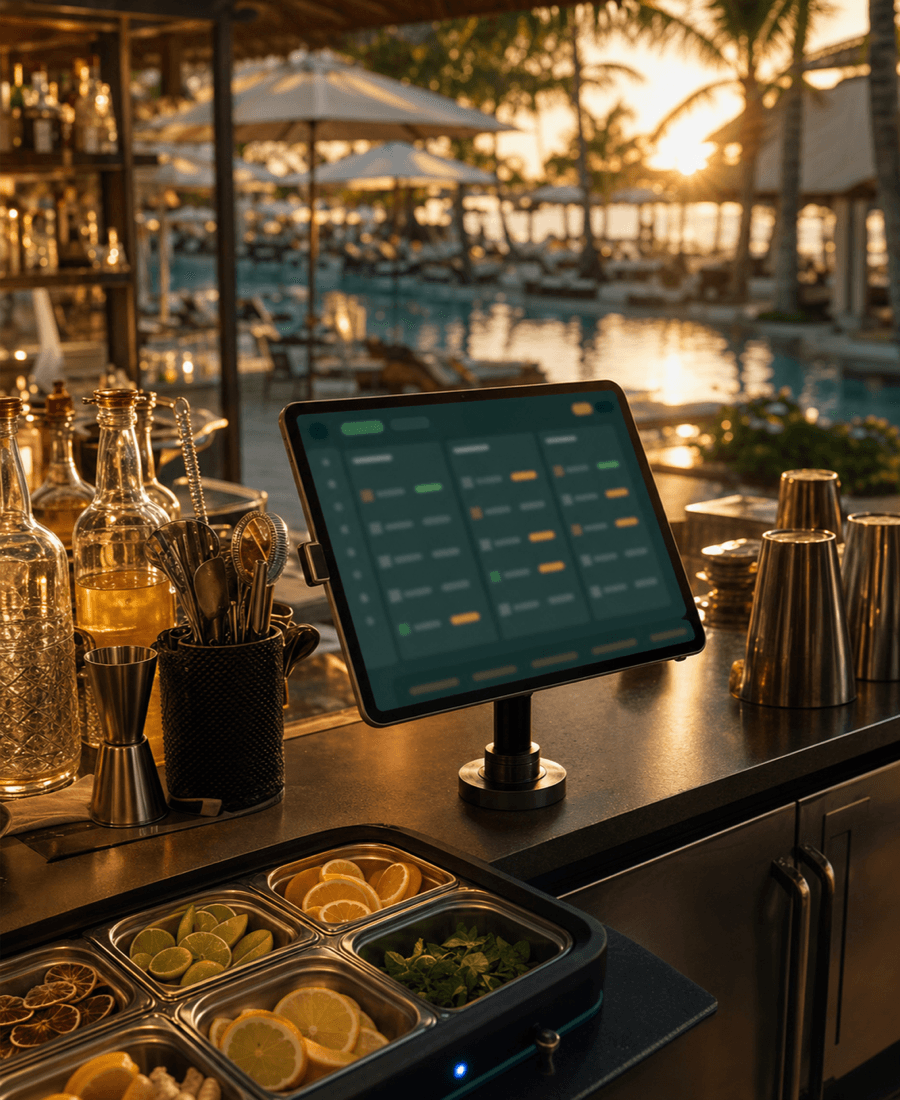
The live station board is /staff/bar. Put it on the bar or kitchen tablet, then use the view selector to match that device to its job.
- At opening, check the connection indicator and tap the sound control once. Browsers require a user gesture before they can play the new-order chime.
- Choose Bar, Kitchen, Expo or Delivery. Bar and Kitchen show their relevant lines while keeping the shared order context intact.
- Production lines move through Queued → Making → Ready. Cards keep the spot, zone, guest, payment choice, notes and running time attached to the work.
- Expo and Delivery manage the ready handoff. A runner claims the delivery, marks it sent out, completes any required photo-ID check and then marks the order Delivered.
- Watch the live timer and overdue state rather than relying on memory. If the connection banner appears, the board keeps retrying and catches up after service returns.
- Use the preparation guide for recipe detail, Stock to remove an unavailable item and the map to confirm the guest location.
- Cancelling records a reason and can offer the authorised guest-block action when the cancellation is related to misuse.
- Floor team take staff-entered orders at
/staff/serve: choose the spot, select the stay or a walk-in, add items and send. The order then follows the same station routing and handoff as a guest QR order. - Managers can use Operations to pause a station, cap open work and publish a quoted wait when demand needs active control.
Operator note · If a guest moves, scan the new spot and use the offered move action. Keeping the spot current is what makes the ready handoff dependable.
8 · Receipts, bills & reports
- Order tickets and receipts — use the printer action on the order to open the browser print flow.
- Operations at
/staff/admin/operationsshows delivered orders alongside their settlement state. Confirm card or cash payments, review room posting, retry a failed post and use the audit history when a state changed unexpectedly. - Room charges remain unposted until confirmation is received or the authorised reconciliation action is completed. Delivery alone does not claim that a folio posting succeeded.
- Stay bills — use the receipt action on a guest row to review and print itemised room-charge orders. Open orders are flagged and excluded until they are Delivered.
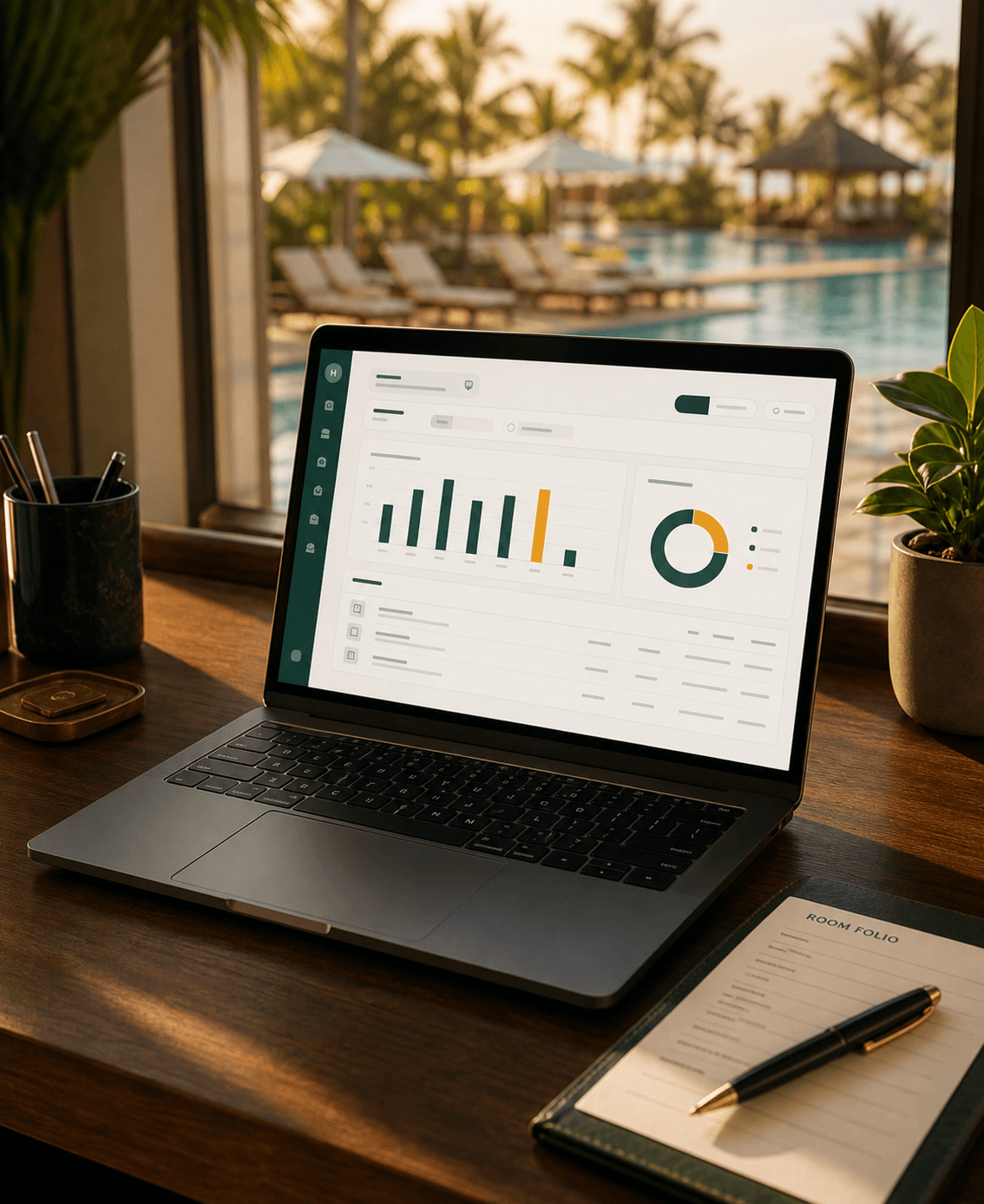
- Dashboard — review orders, recorded revenue, average delivery time, rush by hour, top sellers, zones and payment mix for today, 7 days or 30 days.
- Daily summary — when configured in Branding, the property receives a local-time operating summary at the chosen address.
Operator note · Reconcile exceptions from Operations before printing a final stay bill. It is the clearest place to distinguish Delivered, paid and posted.
9 · Troubleshooting
- “This QR code isn't active” — check whether the spot is active in Tables & QR. Reprint the individual card if the physical code is wrong or damaged.
- A guest cannot verify — confirm the stay exists, today falls within its dates and the guest is not blocked. Matching already tolerates case, accents and spacing.
- No new-order chime — tap the sound control once. The browser will not play service audio until a person has interacted with the page.
- Connection lost — the board retries automatically. If the banner remains, check the device Wi-Fi before changing any order state elsewhere.
- Guest notifications on iPhone — supported web push requires the guest experience to be added to the Home Screen. Availability can vary by device and browser settings.
- An item reaches the wrong station or follows the wrong hours — edit its category in Menu and set Drinks or Food explicitly.
- An order is ready but not completing — switch to Expo or Delivery and check whether it still needs to be claimed, sent out, ID-checked or marked Delivered.
- A room charge failed — open Operations, review the recorded failure and retry only after the underlying property-system or connection issue is resolved.
For a product walkthrough, use the live demo. For operating questions, open support. If the issue needs property context or pilot planning, contact the Sunhail team.